
What do printers check in your files? 7 reasons orders get sent back
What printers check in your file: size, bleed, image sharpness, color mode, fonts, small text and final proof, plus a checklist to review before sending.
You send your design file to the print shop and a few hours later get a message back: "This file can't be printed yet, could you fix it for us?" It happens to shop owners who design their own files and to professional designers alike. So what do printers look at in the files customers send, and why does a file that looks great on screen still get sent back?
This post walks through the 7 things print shops usually check first, briefly explains why, and gives you a checklist to review your file before sending. It applies to labels, paper boxes, bags, cards and most printed packaging.
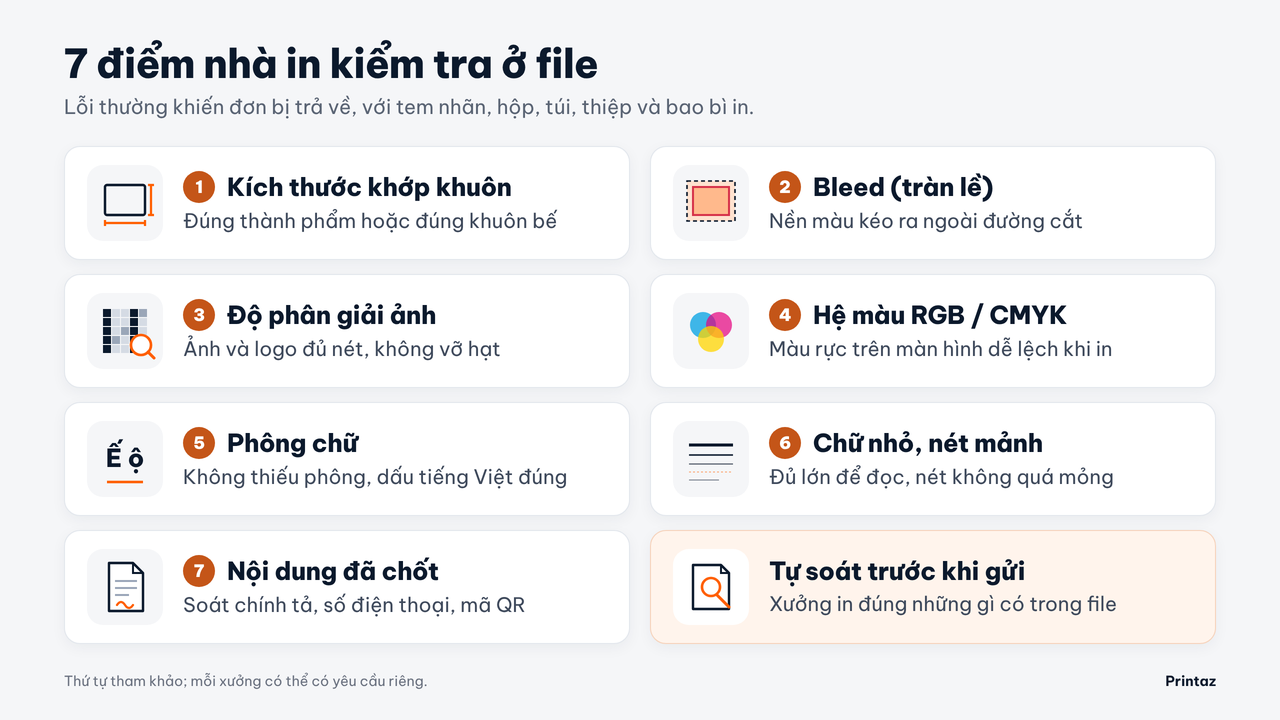
1. Does the size match the die-cut and the finished product?
The first thing a printer does is measure the file. It must match the finished size, or the die-cut if the product is cut to shape. A box file drawn "roughly" or a label designed on an A4 page and then "scaled down" means the shop has to ask again or lay it out themselves.
How to avoid it: design on a die-cut of the right size from the start, and state the finished size clearly when you send the file. If you are making labels, see also Decal label sizes: which die-cut fits your product?.
2. Is there bleed?
Cutters and die-cutting machines always have a small tolerance. If a background color or image stops exactly at the cut line, the slightest shift reveals a white edge. That is why printers need the background to extend beyond the cut line, which is called bleed.
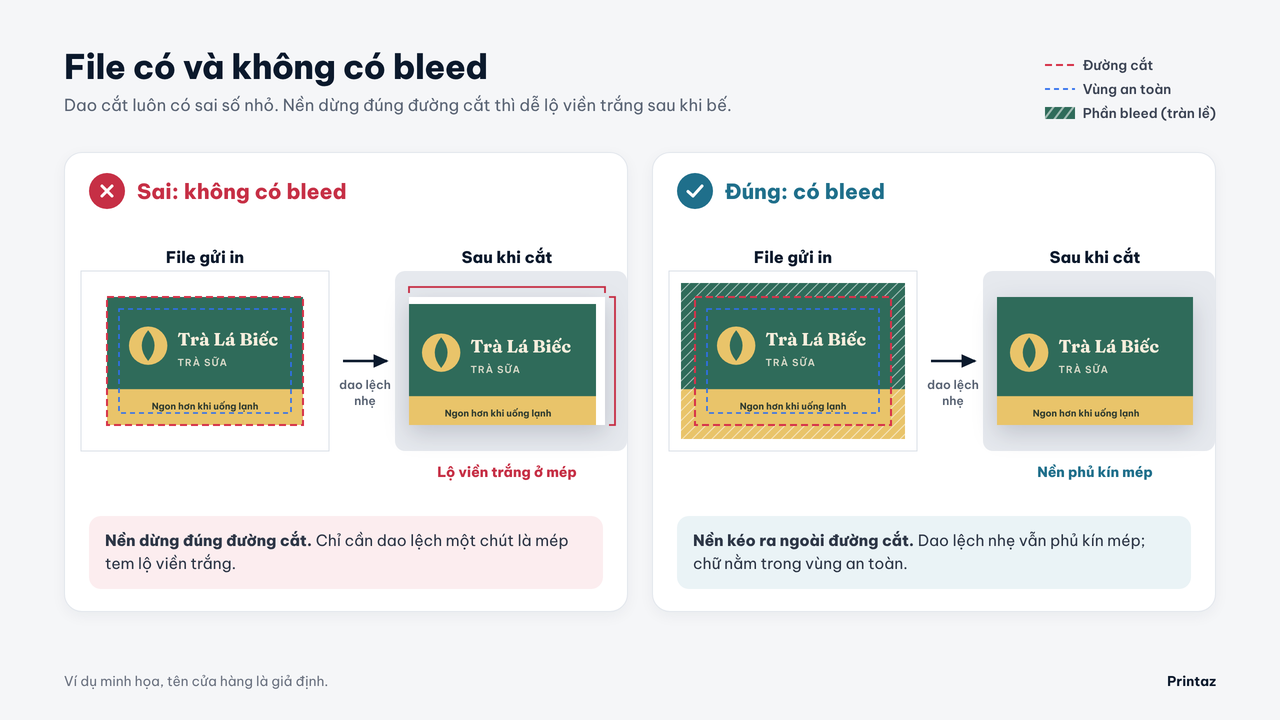
Conversely, important text and logos must stay inside the safe area, a little away from the cut line so they are not trimmed off. Missing bleed is also one of the mistakes covered in 5 file mistakes that get rejected or force costly reprints.
3. Is the image resolution sharp enough?
Images taken from social media, screenshots or logos downloaded from a Facebook page are usually too small to print. They look fine on screen but print grainy and blurry. Printers zoom in on the file to check small details such as text, logo edges and QR codes.
How to avoid it: use the original vector logo if you have one, and original photos from a camera or phone instead of compressed images.
4. RGB or CMYK?
Screens display color with light (RGB), while printers mix color with ink (CMYK). Some colors that look very vivid on screen, such as neon green or bright orange, cannot be printed exactly. Printers pay attention to the file's color mode and warn you in advance if colors may shift.
Learn more in RGB vs CMYK: what's the difference in print and Why print color shifts from the screen.
5. Are any fonts broken or missing?
When you send an original design file, the shop's computer may not have the fonts you used. The result is text replaced by another font, broken Vietnamese diacritics or reflowed lines. Printers usually open the file and check the text carefully, especially Vietnamese diacritics.
How to avoid it: ask the shop which file format they want, and reopen the file on another computer to check it before sending.
6. Will small text and thin lines print?
Very small text or very thin lines can disappear in print, especially on textured paper or decals. Mandatory information such as ingredients, expiry date and phone number must be large enough to read. Printers will warn you if they see details at risk of not showing.
7. Has the customer signed off on the content?
This is the point few people think about: print shops do not fix your spelling or phone number. They print exactly what is in the file. One wrong digit on a label can mean reprinting the whole batch. That is why many shops ask customers to confirm the final proof before running the press.
Checklist before sending files to the printer
The file matches the finished size or the die-cut.
Edge-to-edge backgrounds have bleed; text and logos sit inside the safe area.
Images and logos are sharp; no screenshots.
You know which colors may shift between screen and print.
Fonts display correctly, Vietnamese diacritics are intact.
Small text is still readable; thin lines are not too thin.
Spelling and phone numbers checked, QR code test-scanned.
The final proof is approved by the decision-maker.
For a fuller version, see Checklist for sending packaging print files to the printer: 7 steps.
How does Printaz help with file preparation?
Printaz is an online design and printing platform that connects the whole process, from 2D & 3D design, mockup creation and finished-product preview to ordering prints, with no professional graphics software needed.
For file preparation, the key is that you start from a template already placed on a die-cut of the right size, which removes mistake no. 1 from the start. You use the 3D preview to check the layout on the product (the 3D mockup helps you visualize shape and layout; actual print colors may differ from the screen). When you are happy, you order prints and get a quote right in the app. Printaz has no MOQ and prints from a single order.
If you need to send files to a print shop yourself, every plan exports PNG at 300 DPI in RGB; the Premium plan also exports vector PDF at 300 DPI, with a choice of RGB or CMYK and the dieline included. Printaz does not automatically convert colors to CMYK, does not automatically outline fonts and does not automatically check files, so points 2 to 7 above still need your review.
Steps such as proofreading, checking image sharpness and approving the final proof are still up to you before you order.
Frequently asked questions
Why do printers often send files back?
The most common reasons are wrong size, missing bleed, low-resolution images and font errors. You can check for all of these yourself before sending, using the checklist above.
Can I send a JPG to the printer?
It depends on the shop and the product. Many shops accept them, but the image must be sharp and the right size. It is best to ask the shop which format they want before exporting.
Will the printer fix my file?
Some shops help with minor tweaks, but they usually are not responsible for content such as spelling or phone numbers. Check and approve the final version yourself.
I run a print shop. How can I partner with Printaz?
Email the Printaz team at [email protected] to discuss a partnership.
Start from a die-cut of the right size
A good file starts with the right die-cut. Try designing packaging on a ready-made die-cut, preview it in 3D, then order prints right in the app.
Get a quote: request a quote right in the app.
Email: [email protected]
Share this article